Private messaging
Each small group has a dedicated chat, with every member added automatically. Across the whole ministry, you can message one person directly or start a conversation with a few.
For group leaders
Trellis keeps your ministry's groups, gatherings, studies and care in one app.
Part 1
Each small group has a dedicated chat, with every member added automatically. Across the whole ministry, you can message one person directly or start a conversation with a few.
Announcements sent to your small group, to all group leaders, or to everyone arrive as a notification on each phone, and they stay in one list apart from the chats.
Schedule any gathering your ministry has: your weekly group event, a ministry-wide event, a leader meeting, a retreat. Weekly ones repeat on their own. People RSVP, and they can check in when they arrive.
One library for study guides, files and links. Link this week's study guide to your group event, and your small group finds it on their Home tab.
After each group event, the group leader records who came and how it went, in about two minutes.
Your ministry admin sees who might need a conversation this week: who has stopped coming, which small group is struggling, and every flag a group leader raises. A group leader can raise a flag in a debrief, or ask your ministry admin for a conversation from their Profile, in one tap.
New people join with an invite link from a group leader, or with the ministry's join code and an approval, so only people you approve are in.
Part 2
As a group leader, you care for and lead a small group: you bring people in, keep it meeting, keep it connected during the week, and tell your ministry admin how it went. Your Home tab shows you what's next.
Part 3
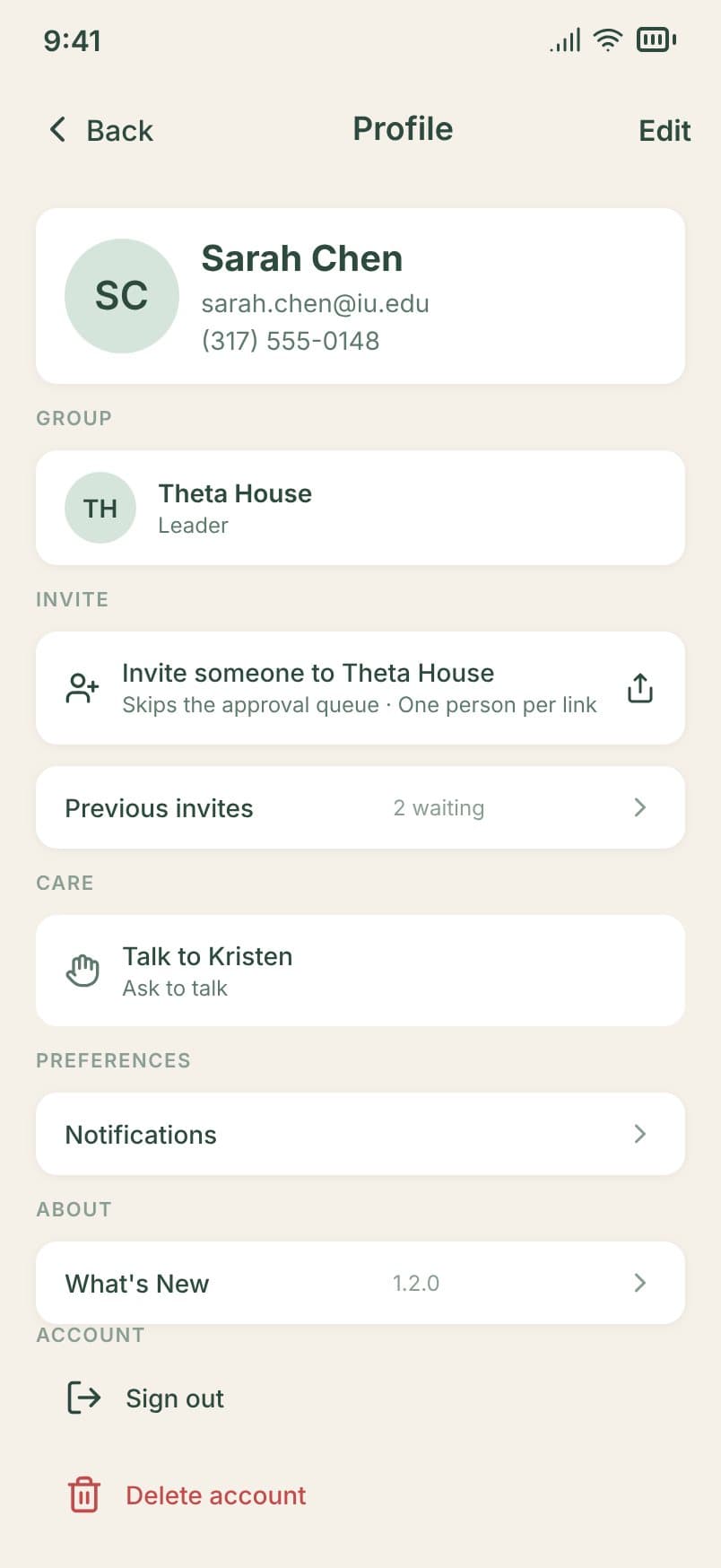
Invite people straight into your small group from Profile → Invite. Each link is for one person and lasts 7 days, and whoever uses it joins your small group and its chat with no wait for approval. People who sign up with the ministry's join code appear on your Home tab under Join requests for you to approve.
Profile → Invite someone to your small group
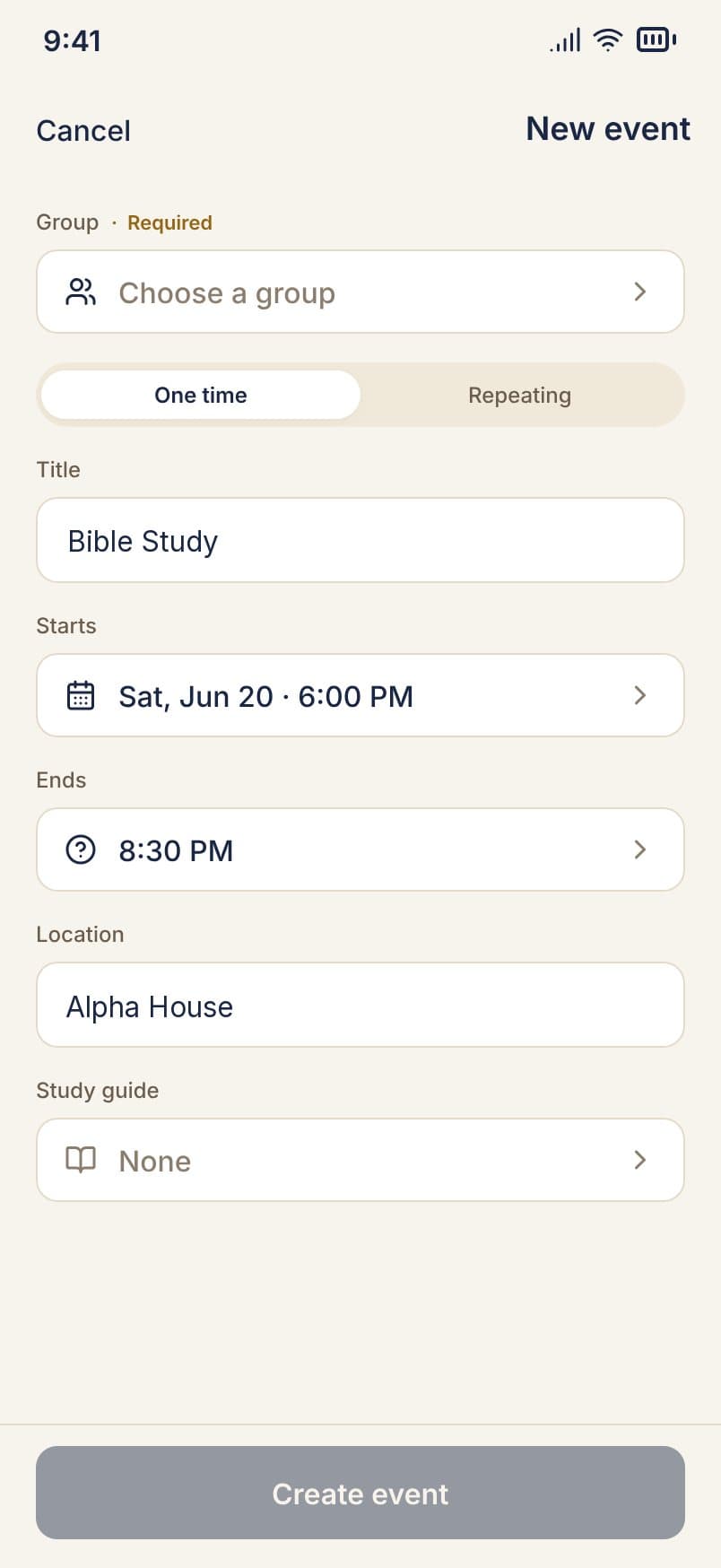
Put your weekly group event in once and choose Repeating; it carries on every week until you change it. Your small group sees it on their Home tab and can RSVP, and your own Home follows it from prep to debrief. Trellis doesn't send reminders yet, so mention changes in the chat.
Home tab → Schedule an event → Repeating
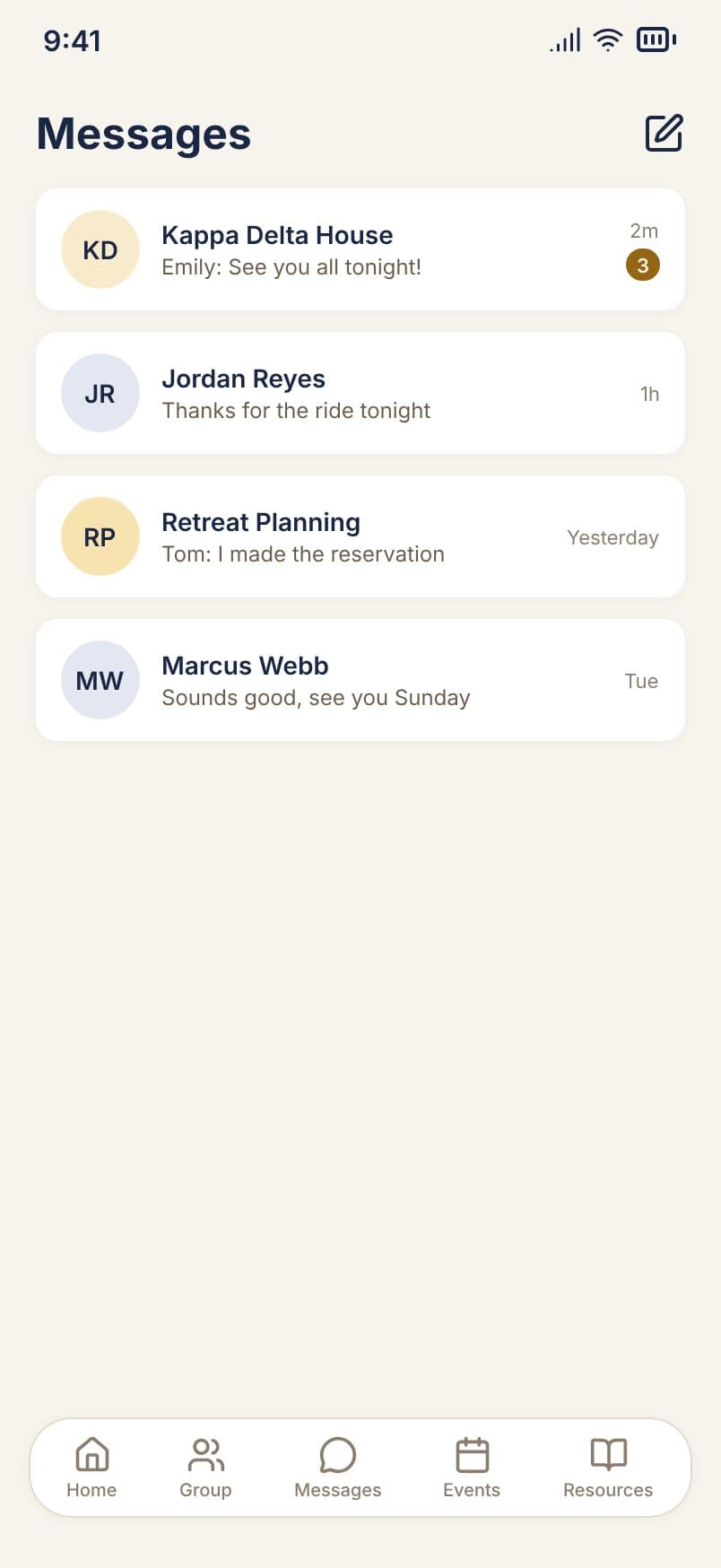
Your small group's chat in Messages has everyone in the small group and nobody else, so it can replace the group text. Your ministry admin isn't in it unless they're a member. You can also message anyone in the ministry directly, or start a conversation with a few people. When your whole small group needs to see something, send them an announcement: it notifies every phone and doesn't scroll away in the chat. Before each group event, your Home tab offers to send a reminder.
Messages → your small group's chat
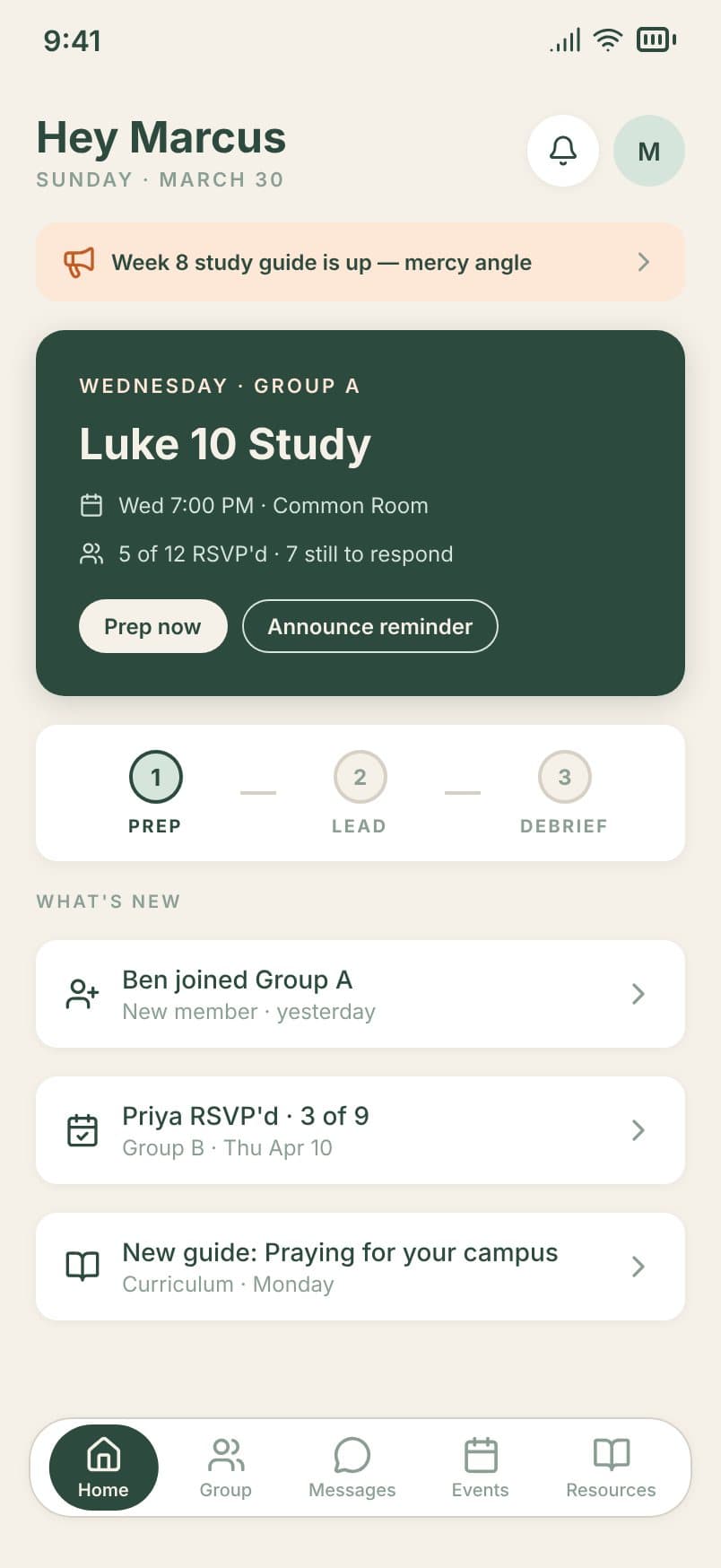
Before each group event, your Home tab puts it at the top and shows how many people have RSVP'd. Tap Prep now to read the study guide you linked to it. When people arrive, they can check in on their phone.
Home tab → Prep now
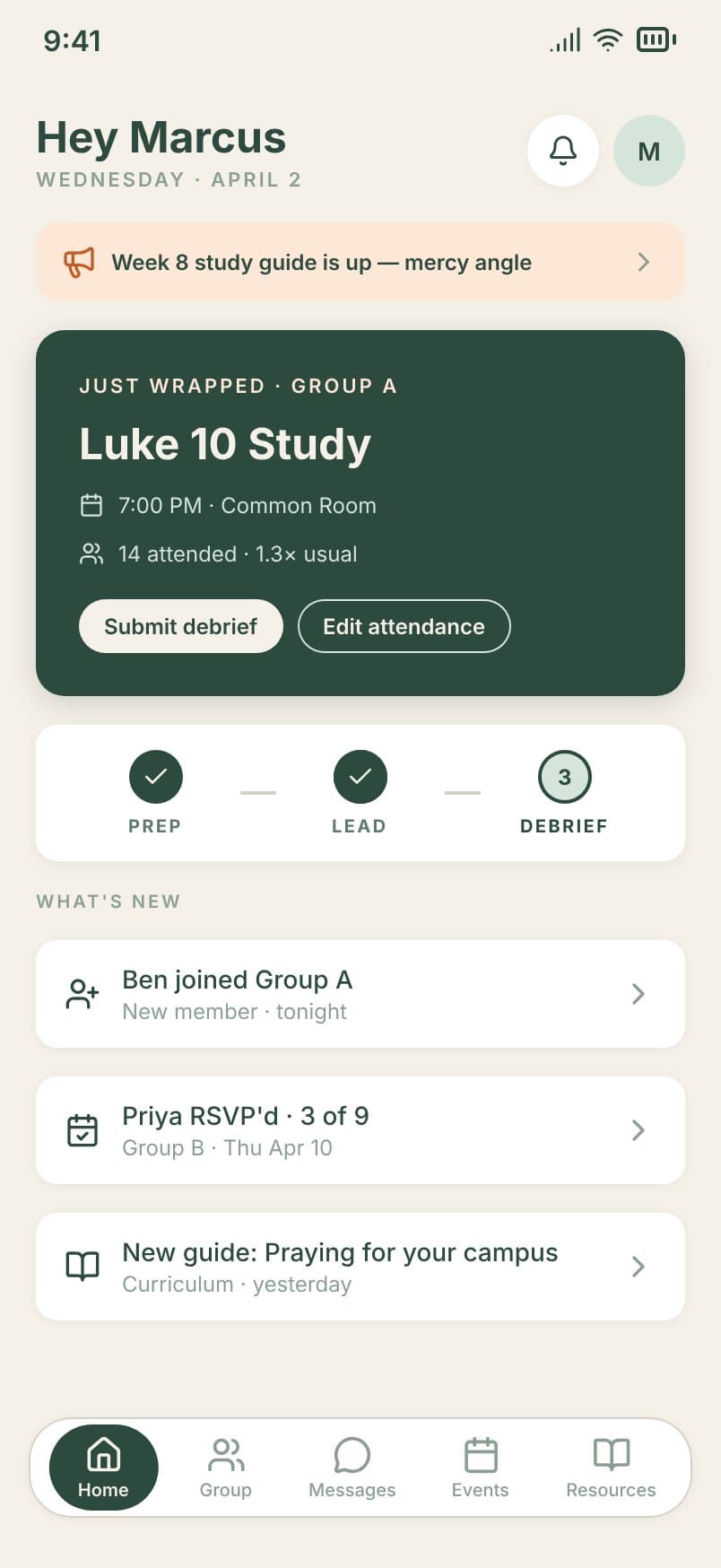
After each group event, your Home tab asks for a debrief. It takes about two minutes: confirm who came, say how it went, and add prayer requests or notes for your ministry admin. Turn on the flag if someone needs a conversation soon. This is how your ministry admin knows how your small group is doing, and Trellis reminds you if you forget.
Home tab → Submit debrief
Message your ministry admin in Trellis.
The screens show example people and a sample ministry. Your app uses your ministry's own names and colors.